Overview
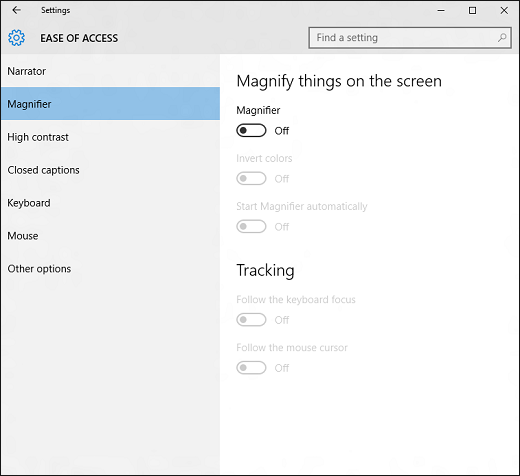
Setting up Windows to make it more accessible takes only a few steps. Most Ease of Access options are available in Settings. Select the Start button, then select Settings > Ease of Access.
Visit Microsoft's page on Ease of Access for more information.
Options
Commonly used options are also available from the sign-in screen. Select the Ease of Access button in the lower-right corner to see them.
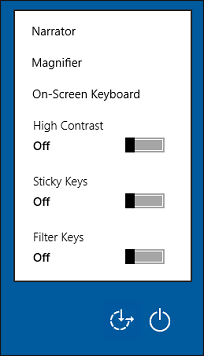
Ease of Access options can help make it easier to:
- Use your PC without a display. The narrator lets you hear audio descriptions for elements on the screen, like text and buttons.
- See what's on the screen. Make the content on your screen bigger using Magnifier, or use high contrast mode.
- Use your keyboard. Turn on Sticky Keys, Toggle Keys, Filter Keys, or the On-Screen Keyboard.
- Use your mouse. Change the pointer size, or turn on Mouse Keys to use your keypad to move the mouse.